


How to Prompt for Video Creation: A Definitive Guide
On this page
This guide explains how to write better prompts for turning an existing creation into a video.
Video prompting works best when you clearly describe what should move, how it should move, how the camera should behave, and what sound should be included if the selected Engine supports audio.
Different Engines are better at different things. Some are best for simple animation, while others are better for general movement, NSFW motion, sound, voice, music, or more creative scene development.
Before You Spend Gems
Before generating, use our Search function or check the Discord Server to see what other users are successfully creating by Engine. This can help you understand what is currently possible before spending Gems.
Start with one simple test generation first. If the result does not work, adjust your prompt or choose a better Engine instead of repeating the same generation.
Note: Image-to-video works best when the prompt builds on what is already visible in the image. If the image does not show the subject, pose, or scene clearly, the video may drift, distort, or ignore parts of the prompt. This effect may be mitigated by more powerful models but it’s still recommended to start with a strong, relevant, and clear base image.
More powerful Engines like Sync 2.0 and Sync 2.0 Pro can create more developed scene movement from a single image. This is not recommended with simpler Engines like Sync, Motion, Motion 2.0, and Frame because they are more likely to stay close to the original image or produce unstable results.
For more details on common issues and Support, see the Need Help? section.
Quick Start: Image to Video Generation
Before spending Gems, use Search or visit the Discord Server to review videos created with the same Engine. This can help you understand what the Engine can currently generate.
For more information about how to write prompts for each Engine, see the Build Your Prompt section.
See also:
How to Improve Image Generation Quality.
How To Use Prompts & Tags for Image Generation
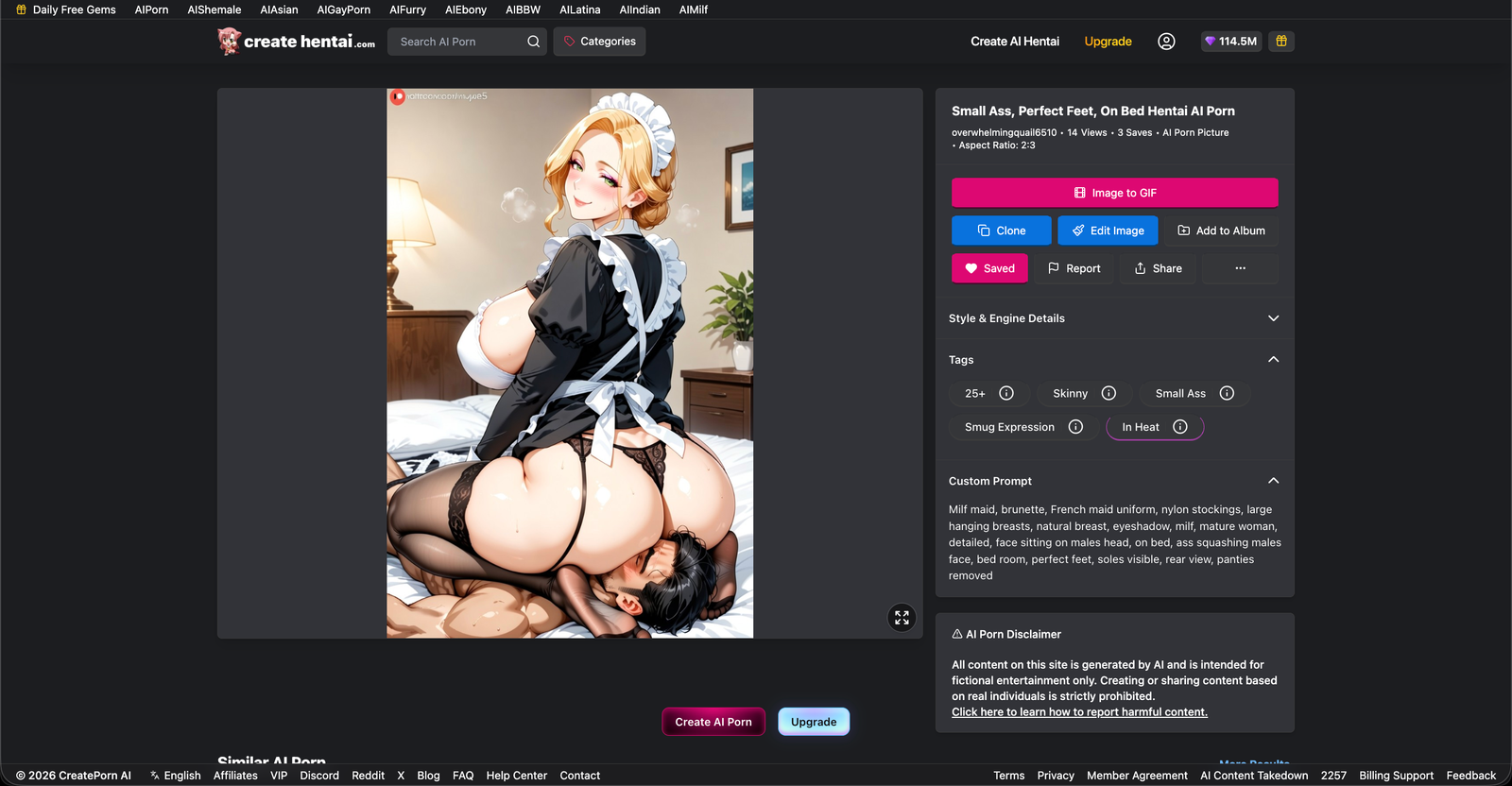
Start With a Strong Image
A clean, clear image gives the Engine a better structure to animate.
If the image is blurry, distorted, poorly lit, cluttered, or visually noisy, the video is more likely to look unstable. Choose an image where the subject, pose, lighting, and scene are easy to understand.
Create or Choose a Base Image
To start creating a video, go to the Homepage or your Creations page.
Choose an image to animate. You can also generate a new image on the Create page and then turn it into a video.
To keep your character's appearance consistent across multiple generations, see Creating and Using Consistent Characters for tips on maintaining a consistent appearance across generations.
Open the Image to Gif Tool
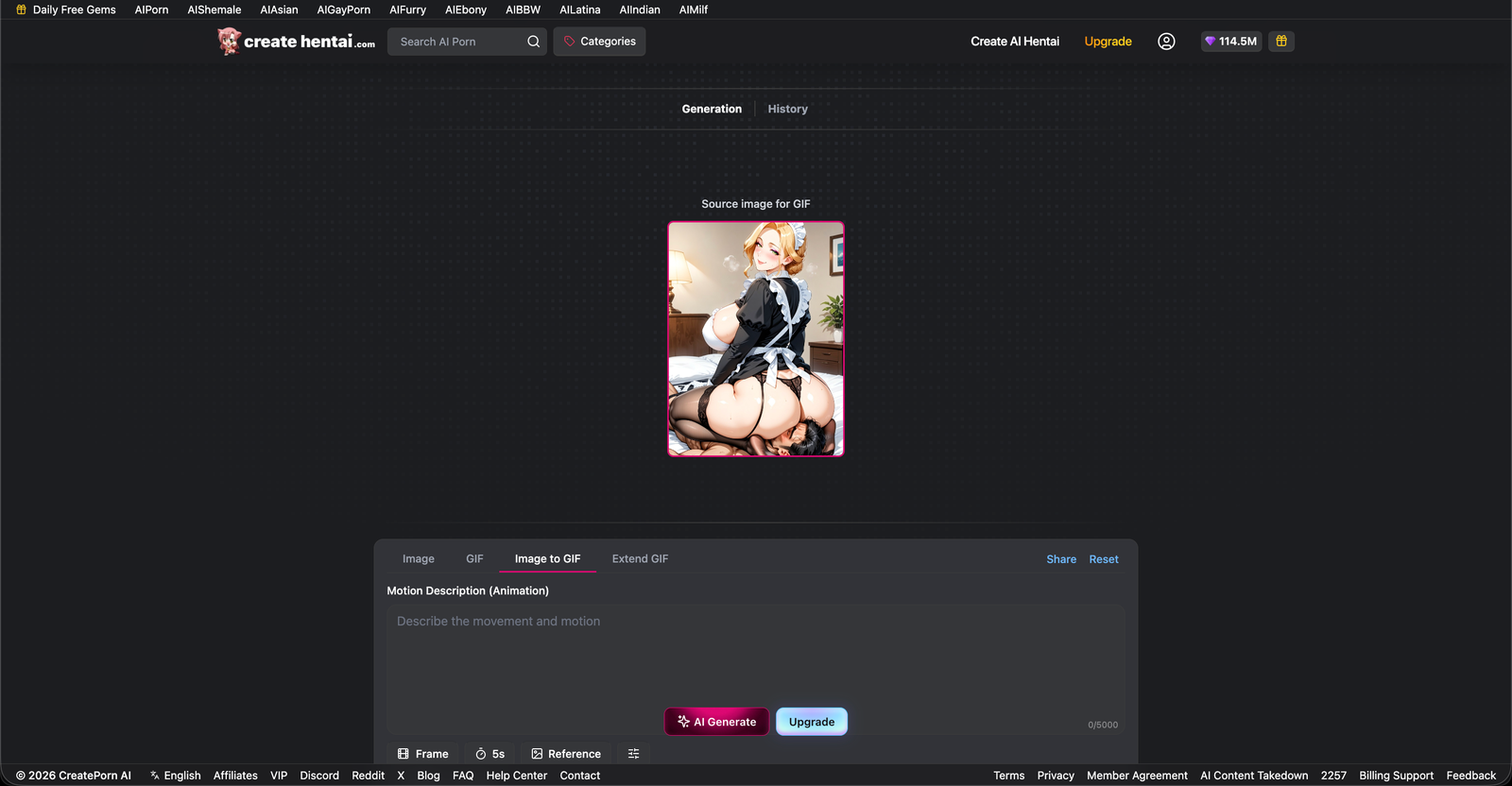
Once the image is selected, open it to access the Image to Gif options.
From there, you can choose the Engine, enter your video prompt, and adjust available settings.
Adaptive Aspect Ratio for First-Frame Generation
When using Image to Video generation, you can set the Aspect Ratio to Adaptive.
Adaptive keeps the output video's aspect ratio aligned with the image being used as the input image (First-Frame).
| First-Frame Image | Output Video |
|---|---|
| 16:9 | 16:9 |
| 9:16 | 9:16 |
| 4:3 | 4:3 |
| 3:4 | 3:4 |
| 1:1 | 1:1 |
You do not need to manually choose a different aspect ratio when Adaptive is enabled.
Note: The first-frame image determines the video's aspect ratio. If the starting image has an unusual crop or framing, that same overall frame shape will be used for the generated video.
The selected image acts as a locking input. This is different from using an image only as a general visual reference.
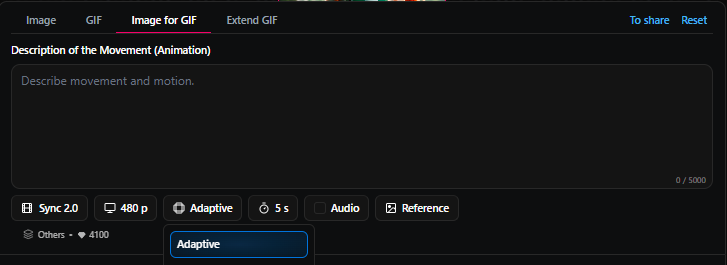
First Frame vs Reference Image
How an image is used affects how closely the generated video follows it.
| Image Use | Behaviour |
|---|---|
| First Frame | This is the current Image to Video workflow available on our websites. The selected image becomes the starting frame of the video. The output aspect ratio is locked to the first-frame image. |
| Reference Image | The image provides visual guidance, but the Engine has more freedom to reinterpret it. The output aspect ratio is not automatically locked to the reference image. |
When you want to animate an existing image and keep the starting composition as closely as possible, use it as the first frame rather than only as a general reference.
Choosing the Right Engine
Choose the Engine based on what matters most for your video, such as simple animation, NSFW motion accuracy, sound, voice, music, scene development, or overall quality.
| Engine | Best For | Sound | Gem Cost | Scene Control |
|---|---|---|---|---|
| Frame | Choose Frame when you want simple, silent movement at the lowest Gem cost. | No | 1,425 Gems | Minimal |
| Motion | Choose Motion when you want general movement with sound while keeping the result close to the selected image. | Yes | 5,950 Gems | Low to moderate |
| Motion 2.0 | Choose Motion 2.0 when accurate body movement, repeated motion, rhythm, or NSFW motion is the priority. | Yes, but weaker than Sync Engines | 6,650 Gems | Moderate |
| Sync | Choose Sync when voice, music, ambient sound, dialogue, or simple camera switches matter. | Yes | 3,950 Gems | Moderate |
| Sync 2.0 | Choose Sync 2.0 when you want stronger general quality, prompt accuracy, and scene control. | Yes | 4,100 Gems | Moderate to high |
| Sync 2.0 Pro | Choose Sync 2.0 Pro when you want the most advanced scene development, cinematic direction, sound, voice, music, or multi-shot structure. Sync 2.0 Pro has NSFW support but it’s weaker than Motion 2.0. | Yes | 5,100 Gems | High |
See also:
Subscription Options and Gem Types
Start With One Test
Generate one sample before repeating the prompt.
If the result does not work:
- Check if the prompts you entered are recognised by the Engine.
- Check whether the requested movement matches the image.
- Remove secondary or clashing actions.
- Reduce the amount of camera movement.
- Add constraints keywords.
- Try a better-suited/more powerful Engine.
Do not immediately repeat the same unsuccessful prompt without changing it.
IMPORTANT: For Sound, be sure to toggle the Audio button on the Create page.
Build Your Prompt
For Examples of each prompt type, see the Prompt Examples section.
A good video prompt should be clear, specific, and focused on one main idea or narrative.
Your prompt should tell the Engine what should move, how it should move, how the camera should behave, and what sound should be included if the selected Engine supports audio.
Detailed prompts absolutely help, but only when the details support the same action. If your prompt includes too many actions, conflicting camera movements, unsupported sound instructions, or major scene changes, the result may drift, ignore parts of the prompt, or become unstable.
If you're unsure whether a prompt is supported, see Prompt Testing Guide: How to Avoid Wasting Gems on Unsupported Prompts before spending additional Gems.
What to Include
A strong video prompt usually includes these parts:
- Subject: Who or what is in the video.
- Movement: What the subject, body part, object, or scene element should do.
- Motion details: How the scene element in question moves, how fast it moves, and whether the motion repeats.
- Environment: Where the action happens.
- Camera movement: Whether the camera stays still, pushes in, pans, tracks, zooms, or cuts.
- Aesthetic description: The mood, lighting, tone, style, or visual feel.
- Sound: Dialogue, voice, background music, ambient sound, sound effects, or silence.
Basic Formula
For silent Engines like Frame, use:
Motion + Camera Control
For Engines that support sound (All other Engines), use these inputs where needed:
Subject + Movement + Environment + Camera Movement + Aesthetic Description + Sound + Constraints
This gives the Engine a clearer understanding of who or what is in the video, what should happen, where it happens, how the camera should move, what the video should feel like, and what audio should be included.
For more advanced Engines like Motion, Sync, Sync 2.0, and Sync 2.0 Pro, you can use Multi-shot Prompting. More on this later.
Prompt Formula Overview
| Best For | Use This Formula | Recommended Engines |
|---|---|---|
| Simple motion | Subject + Movement + Camera Control | All Engines |
| Complete sound-enabled prompts | Subject + Movement + Environment + Camera Movement + Aesthetic Description + Sound + Constraints | All except Frame |
| Advanced visual control | Precise subject + Action Details + Scene/Environment + Lighting and Color Tone + Camera Movement + Visual Style + Image Quality + Constraints | Sync 2.0 and Sync 2.0 Pro |
| Multi-shot or story-like video direction | Shot 1: Shot 2: Shot 3: | Sync, Sync 2.0, and Sync 2.0 Pro |
Keeping the First Frame Consistent
When you want to animate an existing image without significantly changing the output's appearance, keep your prompt focused on movement rather than re-describing the entire image.
The selected first frame already contains information about the:
- Character
- Clothing
- Pose
- Environment
- Composition
- Lighting
- Visual style
If these elements are already correct, avoid unnecessarily describing them again. Adding new or conflicting visual descriptions may encourage the Engine to reinterpret the scene.
A useful structure is:
Use the selected image as the first frame. Preserve the existing character, appearance, clothing, environment, composition, lighting, and visual style. Animate only the requested movement. [Movement] + [Camera] + [Sound] + [Constraints]
Example:
Use the selected image as the first frame. Preserve the existing character, clothing, background, composition, lighting, and visual style. The woman slowly turns her head toward the camera and smiles. Static camera. Natural room ambience. No scene change, stable framing.
If the video changes too much, simplify the prompt and focus on describing only the motion you want.
Subject, Movement & Motion Prompting
Movement prompting tells the Engine what should move and how it should move.
Avoid vague instructions like:
Make the image move.
Instead, identify the subject, body part, object, or scene element and describe its movement.
For example, you can describe motion with phrases like:
- The woman on the left slowly turns her head
- The man on the right gently raises one hand
- The woman’s hair sways lightly
- The man’s body moves back and forth
- The woman’s hips move up and down with a steady rhythm
- The man’s chest rises and falls naturally as he breathes
Movement Best Practices
Slow, gentle, continuous movement is usually more stable than sudden or complicated movement.
Large pose changes may require the Engine to recreate body parts that are hidden or unclear in the selected image. This can cause distorted anatomy, visual drift, or inconsistent motion.
For simpler Engines, keep the action close to the starting pose.
For advanced Engines, you can try more developed movement, but each action should still connect naturally to the next.
Environment Prompting
Environment prompting tells the Engine where the action is happening.
The environment can affect the lighting, sound, mood, and motion of the video. If the setting matters, describe it clearly.
For example, you can include environment details like:
- They are in a quiet bedroom with warm lighting
- The man is in a rainy street at night
- The scene is in a simple indoor room
- The couple is in a crowded club with music
- The woman sits on a beach at sunset
- The subjects are in a neon-lit city background
- The subject stands in front of a clean background with minimal clutter
Keep the environment simple if you want a more stable result. Busy backgrounds, crowded scenes, or unclear locations can make the video more likely to drift or create unwanted movement.
Camera Prompting
Camera prompting tells the Engine how the video should be framed and whether the camera should move.
Useful camera terms include:
- Static camera
- Fixed camera
- Locked-off shot
- slow push-in to …
- Slow zoom in to …
- The camera pans left to…
- The camera pan right to…
- Tracking shot of …
Use shot-size terms to describe the framing:
- Close-up shot of …
- Medium shot of …
- Wide shot of …
- Full-body shot of …
For simpler Engines, keep the camera mostly still. For stronger Engines like Sync 2.0 and Sync 2.0 Pro, you can try complex camera movement, but the prompt should still stay focused.
Camera Best Practices
- Use one main camera movement at a time.
- For more advanced Engines like Sync 2.0 and Sync 2.0 Pro, you can ask for different short actions per shot to make your video more dynamic.
- See Multi-Shot Formula for more details.
- For Frame, Motion, and Motion 2.0, keep the camera mostly still or use a simple push-in or zoom.
- For Sync, use simple camera switches or basic multi-shot direction.
Sound Prompting
Sound instructions should only be used with sound-enabled Engines.
Frame does not support audio.
Be specific about whether you want ambient sound, dialogue, voice, music, sound effects, or silence.
Ambient Sound
Ambient sound describes the natural audio of the scene.
- Quiet room ambience
- Rainfall
- Light wind
- Distant city ambience
- Natural breathing
- Soft crowd noise
- Ocean waves
- Ambient sound only
Dialogue and Voice
- The spoken line
- The tone
- The emotion
- The speaking pace
- The language (Highly recommended you outline language)
For Example:
The speaker says “...” in a [Descriptive] voice …
Background Music
Describe the style, mood, and pacing of the music.
Examples include:
- Soft background music
- Gentle piano music
- Slow romantic music
- Upbeat pop music
- Intense cinematic music
- Quiet ambient music
- Soft electronic background music
- Music slowly fades in
Remove Unwanted Audio
Use these Constraint instructions when you do not want certain audio:
- No dialogue
- No voice
- No background music
- Ambient sound only
Place these instructions near the end of the prompt.
Aesthetic Description
Aesthetic description tells the Engine what the video should look and feel like.
Use this when you want to control the mood, lighting, style, color tone, or overall atmosphere of the video.
You can describe the aesthetic with phrases like:
- Soft warm lighting
- Cinematic lighting
- Natural colors
- High detail
- Retro film look
- Dreamy atmosphere
- Dark dramatic mood
- Bright colorful anime style
For Sync 2.0 and Sync 2.0 Pro, aesthetic details can be more useful because these Engines are better at handling scene mood, lighting, visual style, and image quality. Still, avoid stacking too many style directions into one prompt.
Avoid combining conflicting directions such as:
- Bright cheerful lighting and dark dramatic lighting
- Realistic cinematic style and flat cartoon style
- Warm golden colors and cold monochrome colors
Choose one clear visual direction.
Constraint Prompting
Constraints tell the Engine what to avoid, limit, or keep stable.
Add them at the end of the prompt after the action, camera, aesthetic, and sound instructions.
Useful Constraint Words
| Goal | Prompt Terms |
|---|---|
| Stop unwanted camera movement | static camera, fixed camera, locked-off shot |
| Stop unwanted voice | No dialogue, No voice |
| Stop unwanted music | No background music |
| Reduce scene drift | keep the same composition, no scene change |
| Avoid extra subjects | no extra characters |
| Avoid visual clutter | clean background, simple scene |
| Avoid text artifacts | no subtitles, no text |
| Keep output stable | smooth motion, stable framing, consistent subject |
You can use constraints with every Engine, but stronger Engines may follow more detailed constraints more reliably.
For Frame, use simple visual and movement constraints such as:
- Static camera
- Smooth motion
- Stable framing
- No scene change
Do not add audio-related constraints to Frame because it does not generate sound.
Constraint Example:
A woman sitting by a window slowly turns her head and smiles. Soft warm lighting. Static camera. Quiet ambient room sound. No dialogue, no background music, no extra characters, keep the same composition.
First-Frame Animation Formula
When the selected image already contains the character, environment, composition, lighting, and visual style you want, use:
First-Frame Preservation + Movement + Camera Movement + Sound + Constraints
Example:
Use the selected image as the first frame. Keep the same character, clothing, environment, composition, lighting, and visual style. She slowly raises one hand and smiles toward the camera. Static camera. Quiet ambient room sound. No scene change, stable framing.
This helps keep the prompt focused on animating the existing scene instead of asking the Engine to recreate it.
First-Frame Preservation Terms
Use these instructions when you want the generated video to remain visually close to the starting image.
| Goal | Recommended Trigger Terms |
|---|---|
| Keep the character | keep the same character and appearance |
| Keep the clothing | preserve the existing clothing and accessories |
| Keep the background | keep the existing environment and background |
| Keep the composition | keep the same composition and framing |
| Keep the visual style | preserve the original visual style |
| Keep the lighting | maintain the existing lighting and color tone |
| Avoid scene changes | animate the existing scene only, no scene change |
| Avoid camera drift | static camera, fixed camera, stable framing |
| Limit changes to motion | preserve the existing image and animate only the requested movement |
You do not need to include every preservation instruction in every prompt. Use the ones that match the parts of the image you most want to keep stable.
Start With a Strong Image
For first-frame generation, the selected image also establishes the video's starting composition and aspect ratio. If you want the generated video to remain visually close to the original, choose an image that already contains the character, pose, environment, framing, lighting, and style you want.
The more complete the starting image is, the less the Engine needs to invent or reinterpret during generation.
What to Do If the Video Looks Wrong
| Problem | What to Try |
|---|---|
| The original image changes too much | Add preserve the original image, animate the existing scene only, and maintain the original visual style. Remove unnecessary descriptions of the character, environment, lighting, or style. |
| The video's aspect ratio changes | Make sure the image is being used as the first frame and the Aspect Ratio is set to Adaptive. |
Use Multi-Shot Prompting
Multi-shot prompting describes a short sequence of actions, camera changes, or scene developments in order.
Use multi-shot prompting with:
- Sync
- Sync 2.0
- Sync 2.0 Pro
Use Sync for simple camera switches.
Use Sync 2.0 for stronger multi-shot structure and scene movement.
Use Sync 2.0 Pro for ambitious cinematic sequences, stronger scene development, and more detailed sound direction.
Multi-Shot Formula
Shot 1: Camera Position + Subject + Movement + Environment + Camera Movement + Aesthetic Description + Sound + Constraints
Shot 2: Camera Transition + Subject + Movement + Environment + Camera Movement + Aesthetic Description + Sound + Constraints
Shot 3: Final action + Camera Ending + Subject + Movement + Environment + Camera Movement + Aesthetic Description + Sound + Constraints
Multi-Shot Best Practices
Write the shots in the order they should happen.
Keep each shot focused on one main action.
Use one camera direction per shot.
Make each action connect naturally to the next.
Forcing exact timing is not recommended but is known to work with varying results:
- 0–3 seconds
- 3–5 seconds
- At exactly 4 seconds
Shot order is usually more stable than strict second-by-second timing.
If a three-shot prompt fails, reduce it to two shots or simplify the actions.
What to Do If the Video Looks Wrong
Generated videos may not follow every prompt exactly. Results can vary based on the selected image, Engine, prompt, generation settings, and current Engine capabilities.
Do not repeat the same prompt immediately. Review the problem and adjust the relevant instruction first.
| Problem | What to Try |
|---|---|
| Camera moves unexpectedly | Add static camera, fixed camera, or locked-off shot |
| Motion looks distorted | Reduce the movement speed, range, or number of actions |
| Anatomy becomes unstable | Use a clearer base image and request a smaller movement |
| Extra characters appear | Add no extra characters |
| Scene changes unexpectedly | Add keep the same composition and no scene change |
| Unwanted voice appears | Add No dialogue or No voice |
| Unwanted music appears | Add No background music |
| Prompt is partly ignored | Remove secondary actions and simplify the prompt |
| The wrong subject moves | Identify each subject by position, clothing, or pose |
| Multi-shot prompt fails | Reduce the number of shots or use a stronger Sync Engine |
| The result stays too close to the image | Use Sync 2.0 or Sync 2.0 Pro for stronger scene development |
| NSFW movement is inaccurate | Simplify the camera direction or try Motion 2.0 |
| Audio quality is poor | Simplify the sound request or use a Sync Engine |
| The result still does not improve | Try a different Engine |
If the Engine does not match your goal, try a different one. Use Frame for basic animation, Motion 2.0 for stronger NSFW motion, Sync or Sync 2.0 for better audio, and Sync 2.0 Pro for stronger scene development.
Prompt Examples
Generated Examples coming soon.
Commonly Used Prompts per Category
| Motion & Movement | Environment | Camera Control | Aesthetic Description | Sound | Background Music | Constraints |
|---|---|---|---|---|---|---|
| slowly turns her head | quiet bedroom with warm lighting | static camera | soft warm lighting | ambient room sound | soft background music | no dialogue |
| gently raises one hand | rainy street at night | fixed camera | cinematic lighting | natural breathing | gentle piano music | no voice |
| hair sways lightly | simple indoor room | locked-off shot | natural colors | action sound effects | slow romantic music | no background music |
| body moves back and forth | crowded club with music | slow push-in | high detail | soft voice | upbeat pop music | keep the same composition |
| hips move up and down | beach at sunset | slow zoom in | retro film look | short spoken line | intense cinematic music | no scene change |
| chest rises and falls naturally | neon-lit city background | pan left | dreamy atmosphere | rainfall sound | quiet ambient music | no extra characters |
| walks forward slowly | clean background with minimal clutter | pan right | dark dramatic mood | light wind sound | soft electronic music | clean background |
| leans forward slightly | dim bedroom with soft curtains | tracking shot | bright colorful anime style | quiet room ambience | no background music | simple scene |
| shifts shoulders naturally | luxury hallway with mirrors | close-up shot | moody purple lighting | distant city ambience | music fades in softly | no subtitles |
| moves with a steady rhythm | city balcony at night | medium shot | golden lighting | ambient sound only | music matches the scene | no text |
| moves in and out | cozy living room | wide shot | soft shadows | no dialogue | music stays soft | smooth motion |
| moves side to side | quiet indoor setting | camera slowly pulls back | intimate cinematic style | no voice | gentle background music | stable framing |
| repeated motion | warm bedroom at night | camera transitions to close-up | stylish mood | no background music | no music | consistent subject |
| smooth fluid motion | neon-lit hallway | camera switches to medium shot | calm mood | soft rain outside | slow background music | no camera shake |
| fast steady movement | rainy city street | camera tracks from the front | reflective wet pavement | soft city ambience | quiet instrumental music | no sudden transitions |
Basic Animation
Example 1: Subtle portrait movement
Formula: Subject + Movement + Camera Control
Prompt:
A woman facing the camera slowly smiles and gently tilts her head. Static camera, smooth motion, stable framing.
Example 2: Repeated movement
Formula: Subject + Movement + Camera Control
Prompt:
A woman kneeling in place moves up and down with a slow, steady rhythm. Locked-off shot, consistent subject, no scene change.
Sound-Enabled Video
Example 1: Ambient sound
Formula: Subject + Movement + Environment + Camera Movement + Aesthetic Description + Sound
Prompt:
A woman standing near a window slowly turns her head and smiles in a quiet bedroom at night. The camera slowly pushes in. Soft warm lighting and a calm mood. Quiet ambient room sound, no dialogue.
Example 2: Background music
Formula: Subject + Movement + Environment + Camera Movement + Aesthetic Description + Sound
Prompt:
A woman walks forward slowly with natural body movement through a neon-lit hallway. The camera tracks her from the front. Cinematic lighting with a dark purple and blue color tone. Soft electronic background music, no dialogue.
Example 3: Short voice line
Formula: Subject + Movement + Environment + Camera Movement + Aesthetic Description + Sound
Prompt:
A woman sitting on a sofa leans forward slightly and looks at the camera in a cozy living room. Static camera. Warm, intimate lighting with a relaxed mood. She says, “Come closer,” in a soft, calm voice.
Advanced Scene Control
Example 1: Cinematic realistic scene
Formula: Precise Subject + Action Details + Scene + Lighting + Camera + Visual Style + Image Quality + Constraints
Prompt:
A woman in a black dress stands on a hotel balcony at night with a city skyline behind her. She slowly turns her head, places one hand on the railing, and looks toward the camera. Soft blue lighting with a warm window glow. The camera slowly pushes in from a medium shot to a close-up. Cinematic realistic style, high detail, stable framing. No extra characters, no subtitles, no background music.
Example 2: Stylized scene
Formula: Precise Subject + Action Details + Scene + Lighting + Camera + Visual Style + Image Quality + Constraints
Prompt:
An woman sits beside a glowing window in a cozy room with city lights outside. She slowly raises one hand, smiles softly, and her hair moves in a gentle breeze. Warm indoor lighting with cool blue window light. Fixed camera. Bright colorful style, clean lines, smooth motion. No camera shake, no extra characters, no subtitles.
Multi-Shot Prompting
Example 1: Simple expression change
Prompt:
Shot 1: Medium shot of a woman sitting on the edge of a bed. She looks down quietly with her shoulders relaxed. Soft ambient room sound.
Shot 2: The camera transitions to a close-up of her face. She slowly raises her eyes toward the camera and gives a warm smile. Warm bedroom lighting, no dialogue.
Shot 3: The camera slowly pulls back to a medium shot as she leans back slightly. Quiet room ambience, no background music.
Example 2: Dialogue scene
Prompt:
Shot 1: Medium shot of a woman standing near a window in a dim room. She turns slightly toward the camera. Soft rain can be heard outside.
Shot 2: The camera transitions to a close-up of her face. She says, “You came back,” in a soft, surprised voice.
Shot 3: The camera slowly pushes in as she smiles faintly. Warm low lighting, quiet rain ambience, no background music.
Need Help?
If your video does not generate correctly, try these steps before contacting Support.
For more troubleshooting tips, see Common Generation Issues.
Troubleshooting steps
- Refresh the page.
- Check your Gem balance.
- Review your Generation History.
- Save the affected video link, if available.
- Take a screenshot of any error message.
- Simplify your prompt and test again.
- Try a different Engine if the request does not match the Engine’s strengths.
Failed Generation and Missing Gem Refund
If your generation failed and your Gems were not refunded automatically, contact Support.
Include:
- Your account email
- The website used
- The selected video Engine
- The full prompt
- The affected creation link, if available
- Your Generation History details
- A screenshot of the error
- The number of Gems charged
Warped Anatomy, Poor Audio, or Unexpected Results
If your video generates with warped anatomy, unstable movement, poor audio, unwanted voice, unwanted music, or another unexpected result,
Include:
- Your account email
- The selected Engine
- The full prompt
- The affected creation link
- Screenshots, when helpful
- What you expected
- What happened instead
Our Support team will review the issue and let you know what can be done next.